
Dùng Orca CLI để script hoá Orca từ terminal, quản lý worktree, điều khiển terminal agent, tự động hoá trình duyệt built-in, và cài skill agent.
Orca CLI là lệnh orca để script hoá một editor Orca đang chạy từ bất kỳ shell nào. Dùng nó để tạo và kiểm tra worktree, điều khiển terminal agent, mở file và diff, tự động hoá trình duyệt built-in, chạy automation theo lịch, chia sẻ artifact HTML/Markdown, và điều khiển các tool native của Orca từ script hoặc AI agent.
CLI đi kèm sẵn app desktop; đăng ký nó ở Settings → General → Orca CLI.
Agent có thể cài skill Orca CLI tương ứng bằng:
npx skills add https://github.com/stablyai/orca --skill orca-cli# headless / không có Settings UI:orca skills install --skill orca-cliXem Skills registry & MCP để biết mọi skill Orca có thể cài, gồm cả orca skills install / orca skills update.
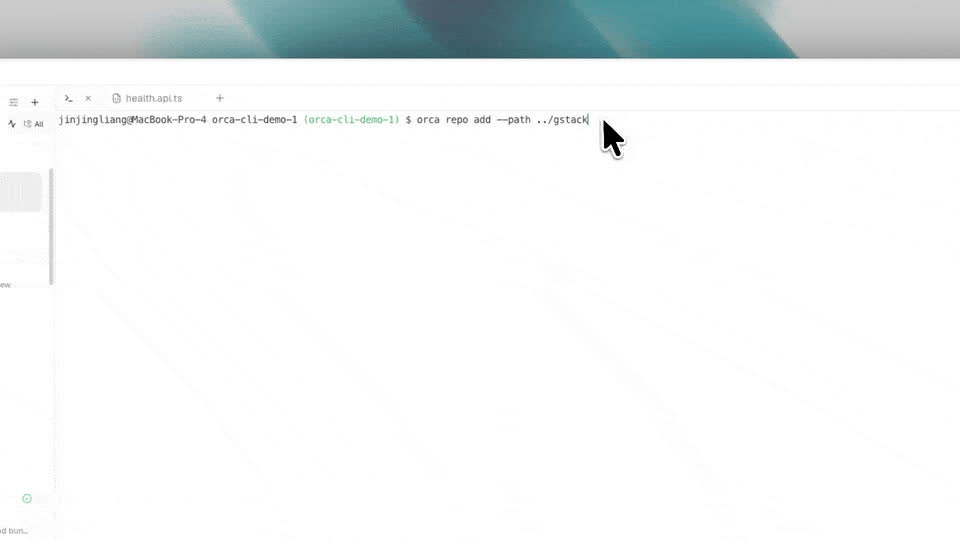
Cài đặt & xác minh
Phần tiêu đề “Cài đặt & xác minh”command -v orcaorca status --jsonLệnh worktree
Phần tiêu đề “Lệnh worktree”orca worktree ps --jsonorca worktree create --repo id:<repoId> --name my-task --issue 123 --jsonorca worktree current --jsonorca worktree set --worktree active --comment "reproduced bug" --jsonorca worktree rm --worktree id:<id> --force --jsonĐể biết selector, flag setup, worktree cha/con, và bản đồ lệnh đầy đủ, xem Orca CLI reference.
Lệnh terminal
Phần tiêu đề “Lệnh terminal”orca terminal list --jsonorca terminal read --jsonorca terminal send --text "continue" --enter --jsonorca terminal wait --for tui-idle --timeout-ms 30000 --jsonorca terminal create --worktree path:/projects/app --command "npm test" --jsonorca terminal split --direction vertical --command "npm run dev" --jsonVới công việc đa agent cần theo dõi, dùng Orchestration thay vì prompt terminal thuần.
Lệnh file
Phần tiêu đề “Lệnh file”Mở file và diff trong worktree Orca đang active từ một shell:
orca file open src/App.tsxorca file diff src/App.tsx --stagedorca file open-changed --mode bothDùng --worktree <selector> khi thư mục hiện tại của shell không nằm trong worktree đích.
Browser profile
Phần tiêu đề “Browser profile”Browser profile cách ly state session tab, để một script hoặc agent có thể test với cookie, local storage, và danh tính đăng nhập khác nhau. CLI expose lệnh profile dưới orca tab profile; bắt đầu với orca tab profile list --json, rồi dùng create, set, clone, hoặc use-default khi cần.
Automation theo lịch
Phần tiêu đề “Automation theo lịch”Dùng orca automations để tạo, kiểm tra, chạy, và xóa task Orca theo lịch từ một shell. Bắt đầu với Scheduled automations khi muốn một prompt lặp lại định kỳ chạy trên một repo hoặc một worktree có sẵn.
Artifact
Phần tiêu đề “Artifact”Chia sẻ HTML hoặc Markdown thành link xem công khai qua tài khoản Orca đã đăng nhập (orca artifacts share|update|list|delete). Publish là opt-in ở Settings → Artifacts. Chi tiết lệnh: CLI reference → Artifacts.
Tự động hoá trình duyệt
Phần tiêu đề “Tự động hoá trình duyệt”CLI cũng điều khiển trình duyệt built-in bằng vòng lặp snapshot-tương tác-snapshot lại:
orca goto --url https://example.com --jsonorca snapshot --json # trả về ref như @e1, @e3orca click --element @e3 --jsonorca fill --element @e1 --value "test@example.com" --jsonorca screenshot --jsonĐể kiểm tra responsive trình duyệt, chuyển tab đang active sang một device profile đã đặt tên:
orca set device --name "iPhone 12" --jsonorca screenshot --jsonMobile emulator
Phần tiêu đề “Mobile emulator”CLI cũng có thể điều khiển một iOS Simulator qua cầu nối mobile emulator của Orca. Nó giới hạn theo worktree đang active, nên agent và script có thể gắn một simulator từ orca emulator list, tap toạ độ đã chuẩn hoá, gõ text, gửi cử chỉ, xoay thiết bị, và tắt nó mà không cần rời khỏi Orca.
orca emulator list --jsonorca emulator attach "<device-name-or-udid>" --jsonorca emulator tap 0.5 0.7 --jsonorca emulator type "hello" --jsonorca emulator gesture '[{"type":"begin","x":0.5,"y":0.8},{"type":"move","x":0.5,"y":0.4},{"type":"end","x":0.5,"y":0.2}]' --jsonorca emulator rotate landscape_left --jsonorca emulator kill --jsonDùng --worktree <selector>, --device <udid-or-name>, hoặc --emulator <id> khi một script cần chỉ định rõ target.
Để xem toàn bộ bề mặt lệnh gồm cả tab, wait, cookie, và frame, xem Orca CLI reference, rồi cài skill Orca CLI (xem Skills registry) và trỏ agent của bạn vào đó.
lượt xem
